

Column moving
Change the order of columns, either manually (dragging them to another location), or programmatically (using Handsontable’s API methods).
Enable the plugin
To enable column moving, set the manualColumnMove configuration option to true.
A draggable move handle appears above the selected column header. You can click and drag it to any location in the grid.
A column has to be selected before you can drag it. You can start the drag anywhere on the selected column’s header, including on the sorting label when column sorting is enabled. Handsontable tells a click from a drag by whether the pointer moves: press and release without moving to sort the column, and press and drag to move it.
When column sorting is enabled, only the header label and its sort indicator sort on click. Pressing the header around them selects the column without sorting it, so you can select a column and drag it in one gesture.
<script setup lang="ts">import { ref } from 'vue';import { HotTable } from '@handsontable/vue3';import { registerAllModules } from 'handsontable/registry';import type { GridSettings } from 'handsontable/settings';
// register Handsontable's modulesregisterAllModules();
// generate an array of arrays with dummy dataconst data = new Array(200) // number of rows .fill(null) .map((_, row) => new Array(20) // number of columns .fill(null) .map((_, column) => `${row}, ${column}`) );
const hotSettings = ref<GridSettings>({ data, width: '100%', height: 320, rowHeaders: true, colHeaders: true, colWidths: 100, manualColumnMove: true, autoWrapRow: true, autoWrapCol: true, licenseKey: 'non-commercial-and-evaluation',});</script>
<template> <div id="example1"> <HotTable :settings="hotSettings" /> </div></template>Move column headers
When you move columns, the default column headers (A, B, C) stay in place.
<script setup lang="ts">import { ref } from 'vue';import { HotTable } from '@handsontable/vue3';import { registerAllModules } from 'handsontable/registry';import type { GridSettings } from 'handsontable/settings';
// register Handsontable's modulesregisterAllModules();
const hotSettings = ref<GridSettings>({ data: [ ['SKU-4821', 'Stainless Steel Water Bottle', 'Harbor Goods'], ['SKU-0093', 'Wireless Mouse', 'Alpine Supply Co.'], ['SKU-1170', 'Ergonomic Office Chair', 'Cascade Distributors'], ], colHeaders: true, rowHeaders: true, manualColumnMove: true, autoWrapRow: true, autoWrapCol: true, height: 'auto', licenseKey: 'non-commercial-and-evaluation',});</script>
<template> <div id="example2"> <HotTable :settings="hotSettings" /> </div></template>But, if you configure the colHeaders option with your own column labels (e.g., SKU, Product, Supplier), your headers move along with the columns.
<script setup lang="ts">import { ref } from 'vue';import { HotTable } from '@handsontable/vue3';import { registerAllModules } from 'handsontable/registry';import type { GridSettings } from 'handsontable/settings';
// register Handsontable's modulesregisterAllModules();
const hotSettings = ref<GridSettings>({ data: [ ['SKU-4821', 'Stainless Steel Water Bottle', 'Harbor Goods'], ['SKU-0093', 'Wireless Mouse', 'Alpine Supply Co.'], ['SKU-1170', 'Ergonomic Office Chair', 'Cascade Distributors'], ], colHeaders: ['SKU', 'Product', 'Supplier'], rowHeaders: true, manualColumnMove: true, autoWrapRow: true, autoWrapCol: true, height: 'auto', licenseKey: 'non-commercial-and-evaluation',});</script>
<template> <div id="example3"> <HotTable :settings="hotSettings" /> </div></template>Set a pre-defined column order
Instead of setting manualColumnMove to true, you can pass an array of physical column indexes to define the initial visual order of columns on render.
Each position in the array corresponds to a visual (display) position, and the value at that position is the physical (source data) column index. For example:
manualColumnMove: [1, 0, 2]This renders the columns in the following order:
- Visual position 0 → physical column
1 - Visual position 1 → physical column
0 - Visual position 2 → physical column
2
The array must contain all physical column indexes (its length must equal the total number of columns). After the initial render, users can still drag columns to change the order further.
For more on how physical and visual indexes relate, see Understanding data and indexes.
Data model behavior
Moving columns does not reorder your source data. Handsontable stores the new order as index metadata through its IndexMapper, and leaves the original data untouched. This affects how you read and save the data:
getData()returns cells in their current visual order, so it reflects any moves. Call it inside theafterColumnMovehook to get an order-accurate snapshot to persist.getSourceData()returns cells in their original physical order, ignoring any moves.
Don’t feed the snapshot back into the grid
Sending the reordered snapshot back to the grid as its new data applies the move a second time. updateData() keeps the current column order on purpose, so Handsontable re-applies the order map it already holds on top of your already-reordered data. One drag then moves the column twice.
Treat the snapshot as output only. Send it to your backend, and leave the grid’s own data alone.
The data you bind to data does not change when a user moves a column, so you have to decide who owns the order. The two models are the same as for rows, and mixing them causes the same double move — see Choose who owns the row order.
If you let Handsontable own the order, seed the starting order with initialState rather than manualColumnMove. Handsontable reads initialState only when it creates the grid, so a re-render can’t apply the order a second time:
initialState: { manualColumnMove: [1, 0, 2],},The array both enables column moving and sets the starting order, so don’t also pass manualColumnMove at the top level. A regular setting takes precedence over the same key in initialState, so manualColumnMove: true alongside the code above would discard the order.
If you own the order yourself, cancel the move by returning false from beforeColumnMove and reorder your own data. Two things follow from that.
afterColumnMove never fires. The move stops at beforeColumnMove, before that hook runs, so persist the order from your own update rather than from the snapshot recipe above.
Reordering columns also takes more work than reordering rows. You either reorder each row’s cells, or reorder your columns definitions. Reordering the cells is the safer route: passing columns through updateSettings() resets the states tied to rows and columns, including the row and column sequence, column widths, row heights, and frozen columns.
Control column moving
Use the beforeColumnMove hook to decide whether each column move is allowed. Returning false cancels the move while keeping the manualColumnMove plugin enabled.
Both beforeColumnMove and afterColumnMove run only when the pointer actually drags a column. A click on a column header does not fire them.
In the following example, select Allow column moving before you drag a column to a new position. Clear the checkbox to block column moving again.
<script setup lang="ts">import { ref } from 'vue';import { HotTable } from '@handsontable/vue3';import { registerAllModules } from 'handsontable/registry';import type { GridSettings } from 'handsontable/settings';
registerAllModules();
const allowColumnMoving = ref(false);
const hotSettings: GridSettings = { data: [ ['SKU-4821', 'Wireless keyboard', 'Harbor Goods', 142], ['SKU-0093', 'USB-C dock', 'Vertex Supply', 67], ['SKU-3148', '27-inch monitor', 'Alpine Supply Co.', 24], ['SKU-7720', 'Laptop stand', 'Northstar Wholesale', 89], ['SKU-1056', 'Noise-canceling headset', 'Summit Distribution', 35], ], colHeaders: ['SKU', 'Product', 'Supplier', 'Stock'], rowHeaders: true, manualColumnMove: true, beforeColumnMove: () => allowColumnMoving.value, stretchH: 'all', height: 'auto', licenseKey: 'non-commercial-and-evaluation',};</script>
<template> <div id="example4"> <div class="example-controls-container"> <div class="controls"> <label> <input v-model="allowColumnMoving" type="checkbox" /> Allow column moving </label> </div> </div> <HotTable :settings="hotSettings" /> </div></template>Result
After completing this guide, you can reorder columns by dragging them with the mouse or by calling dragColumns() and moveColumns() programmatically. You can also set a pre-defined column order at initialization or use beforeColumnMove to block individual moves.
Drag and move actions of the ManualColumnMove plugin
There are significant differences between the plugin’s dragColumns and moveColumns API functions. Both of them change the order of columns, but they rely on different kinds of indexes. The differences between them are shown in the diagrams below.
Both of these methods trigger the beforeColumnMove and afterColumnMove hooks, but only dragColumns passes the dropIndex argument to them.
The dragColumns method has a dropIndex parameter, which points to where the elements are being dropped.
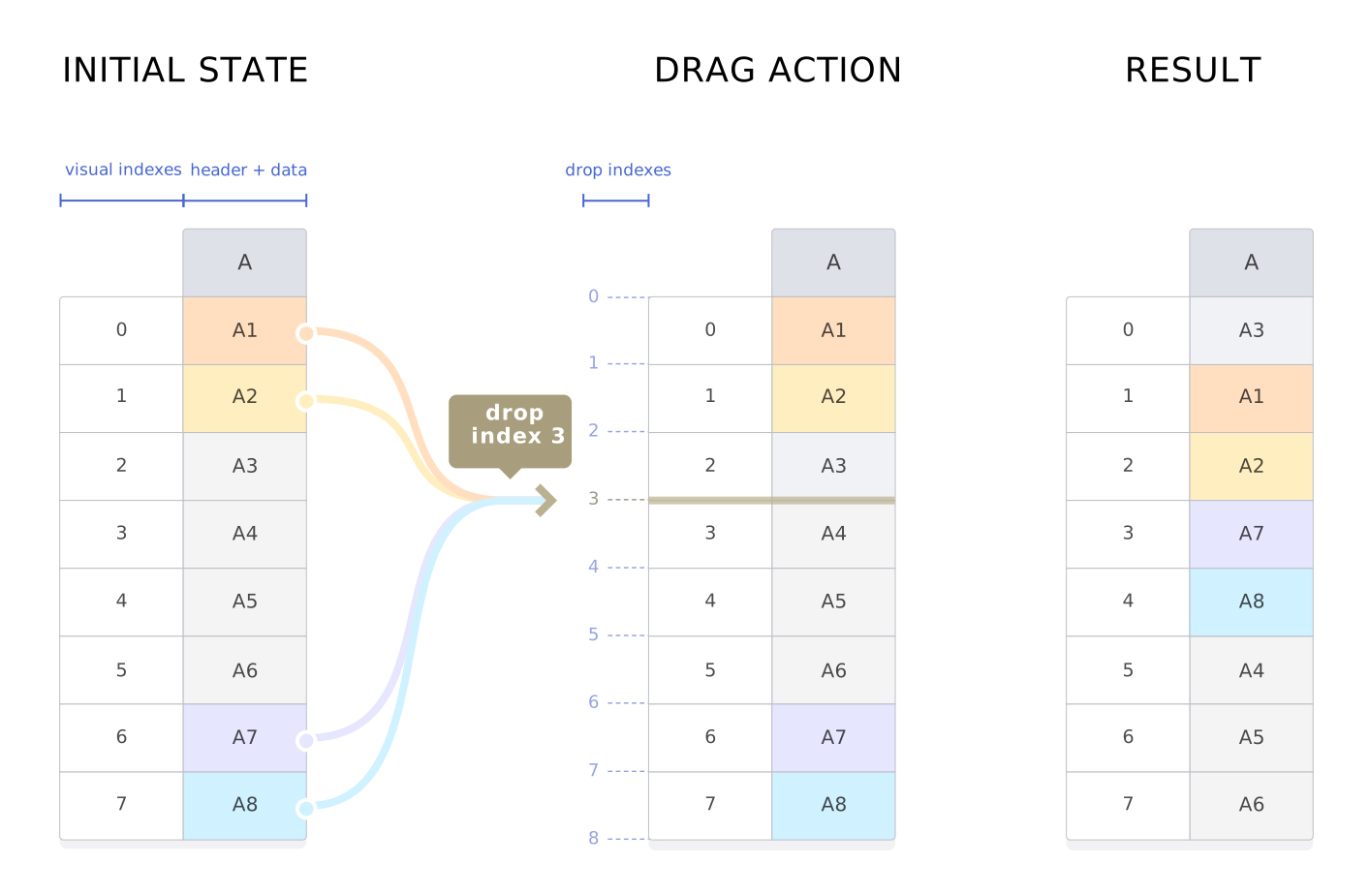
The moveColumns method has a finalIndex parameter, which points to where the elements will be placed after the moving action - finalIndex being the index of the first moved element.
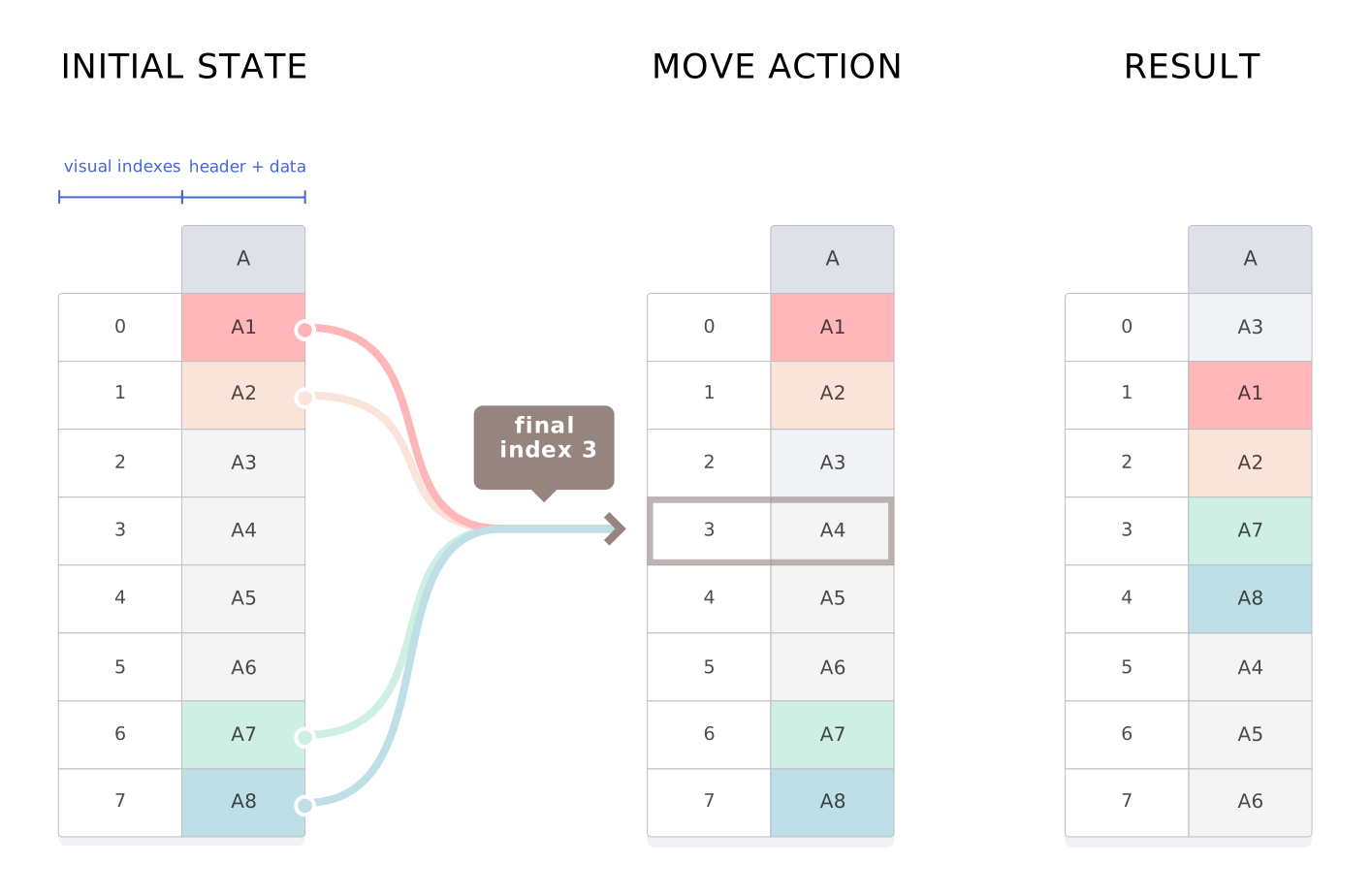
The moveColumns function cannot perform some actions, e.g., more than one element can’t be moved to the last position. In this scenario, the move will be canceled. The Plugin’s isMovePossible API method and the movePossible parameters beforeColumnMove and afterColumnMove hooks help in determine such situations.
Related API reference
Configuration options
Core methods
Hooks
Plugins