



Understanding metadata and inheritance
Handsontable DataGrid keeps its configuration as metadata on three levels: the grid, each column, and each cell. A cell inherits any value it does not set itself from the levels above it. Read this to understand where a value comes from, why getSettings() does not show every value, and when a metadata change needs a render.
Background
Every option you pass to Handsontable is metadata. Options such as readOnly, className, and type describe how the grid, a column, or a single cell behaves.
You can set the same option on three levels:
- The grid level applies to every cell. You set it in the constructor settings or with
updateSettings(). - The column level applies to every cell of one column. You set it in the
columnsoption. - The cell level applies to one cell. You set it with the
celloption, thesetCellMeta()method, or thecellsfunction.
Handsontable also keeps any other key you add. This is custom metadata. A reviewer key on a column or a cell behaves like a built-in option: you set it on a level, and you read it back from a cell.
To learn how to set options on each level, see Setting options. To check which built-in option works on which level, see Option levels.
How it works
The inheritance chain
A cell does not hold a copy of the grid and column values. Its metadata is an object linked to its column’s metadata object, which is linked to the grid’s metadata object:
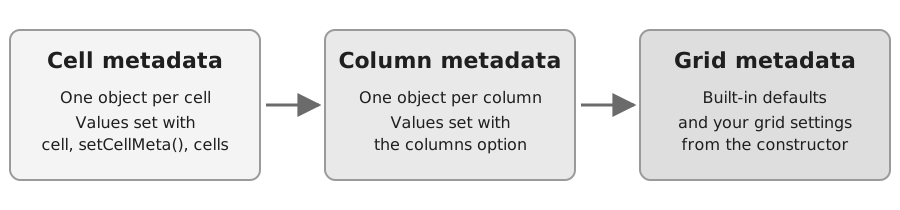
When you read a key from a cell, Handsontable looks for it on the cell. If the cell does not have its own value, the lookup moves to the column, then to the grid. The first level that has the key wins.
Two consequences follow from this:
- A value you set on a higher level reaches every cell that has no value of its own. After
updateSettings({ reviewer: 'HR team' }), every cell without its ownreviewerreadsHR team. Cells and columns that set their ownreviewerkeep it. - A lower level overrides a higher one for that key only. A cell can take
readOnlyfrom its column andreviewerfrom its own metadata.
Select a cell in the example below. The output shows the effective readOnly and reviewer values, and the level each one comes from. Use the button to give the selected cell its own reviewer, and select other cells to see that the change stays on that cell.
import Handsontable from 'handsontable/base';import { registerAllModules } from 'handsontable/registry';
// Register all Handsontable's modules.registerAllModules();
const container = document.querySelector('#example1');const output = document.querySelector('#example1-output');const status = document.querySelector('#example1-status');const button = document.querySelector('#example1-set-reviewer');
const hot = new Handsontable(container, { // licenseKey: 'your-license-key', // get a key at https://handsontable.com/pricing/ data: [ ['Ana García', 'Engineering', 'Senior Engineer'], ['James Okafor', 'Marketing', 'Product Manager'], ['Li Wei', 'Engineering', 'Staff Engineer'], ['Priya Nair', 'Finance', 'Financial Analyst'], ['Tom Becker', 'Marketing', 'Brand Designer'], ], colHeaders: ['Name', 'Department', 'Title'], rowHeaders: true, width: 'auto', height: 'auto', // keep the selection when you click the button below the grid outsideClickDeselects: false, // let the Tab key move the focus out of the grid, to the button tabNavigation: false, // grid level readOnly: false, reviewer: 'HR team', // column level: the Department column columns: [{}, { readOnly: true, reviewer: 'Finance team' }, {}], // cell level: one cell in the Department column cell: [{ row: 1, col: 1, reviewer: 'Legal team' }],});
const has = (object, key) => Object.prototype.hasOwnProperty.call(object, key);
const levelOf = (row, col, key) => { if (has(hot.getCellMeta(row, col), key)) { return 'cell'; }
return has(hot.getColumnMeta(col), key) ? 'column' : 'grid';};
const selectedCell = () => { const highlight = hot.getSelectedRangeLast()?.highlight;
// with `navigableHeaders`, the highlight can sit on a header, which has a negative index if (!highlight || highlight.row === null || highlight.col === null || highlight.row < 0 || highlight.col < 0) { return null; }
return { row: highlight.row, col: highlight.col };};
const show = () => { const cell = selectedCell();
if (!cell) { return; }
const { row, col } = cell; const meta = hot.getCellMeta(row, col);
output.textContent = [ `Cell (${row}, ${col})`, `readOnly: ${meta.readOnly} (from the ${levelOf(row, col, 'readOnly')} level)`, `reviewer: ${meta.reviewer} (from the ${levelOf(row, col, 'reviewer')} level)`, ].join('\n');};
hot.addHook('afterSelection', show);
button.addEventListener('click', () => { const cell = selectedCell();
if (!cell) { status.textContent = 'Select a cell first.';
return; }
hot.setCellMeta(cell.row, cell.col, 'reviewer', 'Audit team'); show(); status.textContent = `The reviewer of cell (${cell.row}, ${cell.col}) is now Audit team.`;});
output.textContent = 'Select a cell to see where its values come from.';import Handsontable from 'handsontable/base';import { registerAllModules } from 'handsontable/registry';
// Register all Handsontable's modules.registerAllModules();
const container = document.querySelector<HTMLElement>('#example1')!;const output = document.querySelector<HTMLElement>('#example1-output')!;const status = document.querySelector<HTMLElement>('#example1-status')!;const button = document.querySelector<HTMLButtonElement>('#example1-set-reviewer')!;
const hot = new Handsontable(container, { // licenseKey: 'your-license-key', // get a key at https://handsontable.com/pricing/ data: [ ['Ana García', 'Engineering', 'Senior Engineer'], ['James Okafor', 'Marketing', 'Product Manager'], ['Li Wei', 'Engineering', 'Staff Engineer'], ['Priya Nair', 'Finance', 'Financial Analyst'], ['Tom Becker', 'Marketing', 'Brand Designer'], ], colHeaders: ['Name', 'Department', 'Title'], rowHeaders: true, width: 'auto', height: 'auto', // keep the selection when you click the button below the grid outsideClickDeselects: false, // let the Tab key move the focus out of the grid, to the button tabNavigation: false, // grid level readOnly: false, reviewer: 'HR team', // column level: the Department column columns: [{}, { readOnly: true, reviewer: 'Finance team' }, {}], // cell level: one cell in the Department column cell: [{ row: 1, col: 1, reviewer: 'Legal team' }],});
const has = (object: object, key: string) => Object.prototype.hasOwnProperty.call(object, key);
const levelOf = (row: number, col: number, key: string) => { if (has(hot.getCellMeta(row, col), key)) { return 'cell'; }
return has(hot.getColumnMeta(col), key) ? 'column' : 'grid';};
const selectedCell = () => { const highlight = hot.getSelectedRangeLast()?.highlight;
// with `navigableHeaders`, the highlight can sit on a header, which has a negative index if (!highlight || highlight.row === null || highlight.col === null || highlight.row < 0 || highlight.col < 0) { return null; }
return { row: highlight.row, col: highlight.col };};
const show = () => { const cell = selectedCell();
if (!cell) { return; }
const { row, col } = cell; const meta = hot.getCellMeta(row, col);
output.textContent = [ `Cell (${row}, ${col})`, `readOnly: ${meta.readOnly} (from the ${levelOf(row, col, 'readOnly')} level)`, `reviewer: ${meta.reviewer} (from the ${levelOf(row, col, 'reviewer')} level)`, ].join('\n');};
hot.addHook('afterSelection', show);
button.addEventListener('click', () => { const cell = selectedCell();
if (!cell) { status.textContent = 'Select a cell first.';
return; }
hot.setCellMeta(cell.row, cell.col, 'reviewer', 'Audit team'); show(); status.textContent = `The reviewer of cell (${cell.row}, ${cell.col}) is now Audit team.`;});
output.textContent = 'Select a cell to see where its values come from.';<div id="example1"></div><p> <button id="example1-set-reviewer" type="button">Give the selected cell its own reviewer</button></p><p id="example1-status" role="status"></p><pre id="example1-output"></pre>The example sets readOnly and reviewer on the grid, readOnly and reviewer on the Department column, and reviewer on one cell. The cell in the Department column with its own reviewer still reads readOnly: true from the column.
The cells function
The cells function overrides all three levels. Handsontable calls it for each cell when the grid renders, and merges the object it returns into that cell’s own metadata. The own-property check in the example above therefore reports such a value as coming from the cell level.
The merge only adds keys. If cells returns { readOnly: true } for a cell once, and {} on a later render, the cell keeps readOnly: true. Return the key in every branch, for example { readOnly: false }.
The kept value goes away when the meta resets:
- An
updateSettings()call that carriescells,cell, orcolumnsresets it. - A
loadData()call resets it.updateData()andupdateSettings({ data })don’t. - A row that scrolls more than one viewport out of view and back resets it, unless it is the row of the selected cell. Cells with meta you set with
setCellMeta()or thecelloption, and cells marked invalid, keep their meta. Horizontal scrolling doesn’t reset it.
The function runs once per cell for each full render, not on every cached read. Reading a cell with getCellMeta() between two renders returns the result of the last run. getCellMetaTransient() has no such cache: it runs the function again on every call for a cell with no stored metadata. Bulk reads such as validateCells() go through it. On a grid of 2000 rows and 3 columns, the function ran about 6,000 times during initialization and again about 6,000 times in validateCells().
The row and col arguments of cells are physical indexes. Use the cells function only when no other level fits.
Reading metadata
Each method reads a different part of the chain:
| Method | Returns | Index |
|---|---|---|
getSettings() | The grid-level settings only. | None |
getColumnMeta() | The metadata of one column, with the grid values it inherits. | Visual column |
getCellMeta() | The effective metadata of one cell, after all levels. | Visual row and column |
getCellMetaTransient() | The same as getCellMeta(), without keeping a metadata object for the cell. It runs the cells function on every call for a cell with no stored metadata. | Visual row and column |
getCellsMeta() | A flat array of the cell metadata objects Handsontable currently holds. | None |
getCellMetaAtRow() | The cell metadata objects of one row. | Physical row |
getSettings() does not reflect values you set on a column or a cell. After setCellMeta(0, 0, 'reviewer', 'Legal team'), getSettings().reviewer still returns the grid value, and getCellMeta(0, 0).reviewer returns Legal team. To get the value a cell uses, always read it with getCellMeta().
To find which level a value comes from, check the own properties of the objects in the chain. The example above does this with Object.prototype.hasOwnProperty.call() on the objects that getCellMeta() and getColumnMeta() return.
The check works for keys you set yourself, such as custom keys and options you pass in a settings object. It does not work for keys Handsontable adds. A cell metadata object owns row, col, visualRow, visualCol, and prop, and a numeric cell owns a className. Column metadata owns data and width, and the keys that its type expands to. For those keys, the check reports a level where you set nothing.
Indexes and persistence
Handsontable stores cell metadata by physical index, so the metadata follows the data and not the screen position. If you set a value on the cell that shows Priya Nair and then sort the grid, the value stays with Priya Nair.
The same holds on the column level: the entries of the columns array address physical columns. After you move a column, its options move with it.
The methods that take coordinates, such as setCellMeta() and getCellMeta(), use visual indexes and convert them for you. The cells function and getCellMetaAtRow() use physical indexes. For the difference between the two kinds of index, see Understanding data and indexes.
How metadata changes
These methods change metadata while the grid runs:
setCellMeta()sets one key on one cell.setCellMetaObject()sets several keys on one cell with an object.removeCellMeta()removes a key from a cell, so the cell inherits the value again.updateSettings()changes grid-level values. With thecolumnsorcelloption, it also sets column-level or cell-level values.
For example:
// give one cell its own valuehot.setCellMeta(0, 0, 'reviewer', 'Legal team');
// remove it: the cell reads the column or grid value againhot.removeCellMeta(0, 0, 'reviewer');For the steps to set and read options on each level, see Change cell options.
Why a metadata change does not repaint the grid
setCellMeta() changes the metadata but does not render the grid. It also runs the beforeSetCellMeta hook, which can veto the write, and the afterSetCellMeta hook, and it records an undo step.
The grid shows a new value of a key that changes what the user sees, such as className or type, after the next render. The render() method triggers it:
hot.setCellMeta(2, 0, 'className', 'needs-review');hot.render();Several setCellMeta() calls followed by one render() cost a single render. The batch() method ends with a fast render that does not redraw the cells, so a className set inside it is not painted. Call render() inside its callback.
A change to readOnly blocks editing at once. Only the dimmed styling waits for the render. A custom key that no renderer reads, such as reviewer, needs no render. For more on when the grid repaints, see Understanding rendering.
What replaces or keeps cell metadata
Handsontable stores the metadata you set at runtime on the cell metadata objects, keyed by physical index. These calls treat those objects differently:
loadData()clears the stored cell metadata. Cells fall back to their column and grid values. The values you set withsetCellMeta()are gone, and so are the values from thecelloption. The example above would lose itsLegal teamcell.updateData(), andupdateSettings()with a newdatavalue, keep the stored cell metadata.updateSettings()with thecelloption applies the entries again, even when you pass the same array. A value you set withsetCellMeta()on one of those cells reverts to thecellentry. A differentcellarray replaces the earlier entries. This matters in a wrapper that sends the settings again on every render.
updateData() keeps the metadata by physical position, not by record. If the new dataset puts different records at the same rows, the old metadata now describes the new records. Metadata of rows past the end of a shorter dataset stays stored too: after updateData() with fewer rows and then with more, the metadata of the extra rows is back. updateData() suits datasets whose rows stay the same records.
Custom metadata
Any key you add works like a built-in option. Set it on a level, then read it from a cell:
const hot = new Handsontable(container, { data: employees, // licenseKey: 'your-license-key', // get a key at https://handsontable.com/pricing/ reviewer: 'HR team', columns: [{}, { reviewer: 'Finance team' }, {}],});
hot.getCellMeta(0, 0).reviewer; // 'HR team'hot.getCellMeta(0, 1).reviewer; // 'Finance team'Custom metadata is useful when a renderer, validator, editor, or hook needs information about a cell that is not part of its value. A renderer receives the cell metadata as its cellProperties argument, so it reads a custom key the same way it reads a built-in one.
Choose names that do not collide with built-in options or hooks. A custom key named type or className changes the grid’s behavior. A key named like a hook, such as afterRender, registers as a hook and never reaches the cell metadata. A type string that is not registered throws when the grid starts. Metadata lives beside your data and not in it, so getSourceData() does not return it. If you need it after a reload, save it yourself.
If you check your settings with validateSettings(), it reports a custom key as unknownOption. For how to filter those reports, see the known limitations of Validate settings.
Trade-offs
- Reading with
getCellMeta()keeps an object per cell. Handsontable creates and stores a metadata object for each cell you read. A loop over a large dataset keeps one object for every cell it visits. For read-only scans, usegetCellMetaTransient(). It skips that memory, but it runs thecellsfunction again on every call. - The
cellsfunction costs time on every render and on bulk reads. It runs for each rendered cell, and again for each cell that a read such asvalidateCells()visits. Keep its body small, or use thecolumnsandcelloptions instead. - A value can come from three places. When a cell behaves in a way you did not expect, read the value with
getCellMeta()and check the level that holds it before you change the grid settings.
Related
- Setting options — set options on the grid, column, row, and cell levels.
- Option levels — check which option works on which level.
- Understanding data and indexes — physical and visual indexes.
- Understanding rendering — what a render does and when you need one.
getCellMeta(),setCellMeta(),getColumnMeta(),getSettings()API reference.