



Clipboard
Copy data from selected cells to the system clipboard.
Handsontable DataGrid supports copy, cut, and paste via the browser clipboard API and keyboard shortcuts. Configure clipboard behavior to control what data users can copy or paste.
Overview
You can copy or cut data from Handsontable to the system clipboard, either manually (using the context menu or the Ctrl/⌘+C/X shortcuts) or programmatically (using Handsontable’s API methods).
Copy & cut
Copy & Cut actions allow exporting data from Handsontable to the system clipboard. The CopyPaste plugin copies and cuts data as a text/plain and a text/html MIME-type.
End-user usage
Available keyboard shortcuts:
- Ctrl/⌘+C - copies the content of the last cell in the selected range
- Ctrl/⌘+X - cuts the content of the last cell in the selected range
Available options in the browser’s toolbar:
Edit > Copy- copies the content of the last cell in the selected rangeEdit > Cut- cuts the content of the last cell in the selected range
To let the end user copy the contents of column headers, see the Copy with headers section.
A cell with the copyable option set to false copies as an empty string, and cutting it clears the cell. The password cell type sets copyable: false by default. See Copy, cut, paste, and autofill for how password cells behave.
Context menu
When the context menu is enabled, it includes default items, including copy & cut options.
- Copy - as a predefined key
copy - Cut - as a predefined key
cut
You can use them in the same way as the rest of the predefined items in the context menu. These operations are executed by document.execCommand().
import Handsontable from 'handsontable/base';import { registerAllModules } from 'handsontable/registry';
// Register all Handsontable's modules.registerAllModules();
const container = document.querySelector('#example1');
new Handsontable(container, { data: [ ['A1', 'B1', 'C1', 'D1', 'E1'], ['A2', 'B2', 'C2', 'D2', 'E2'], ['A3', 'B3', 'C3', 'D3', 'E3'], ['A4', 'B4', 'C4', 'D4', 'E4'], ['A5', 'B5', 'C5', 'D5', 'E5'], ], rowHeaders: true, colHeaders: true, contextMenu: ['copy', 'cut'], height: 'auto', autoWrapRow: true, autoWrapCol: true, // licenseKey: 'your-license-key', // get a key at https://handsontable.com/pricing/});import Handsontable from 'handsontable/base';import { registerAllModules } from 'handsontable/registry';
// Register all Handsontable's modules.registerAllModules();
const container = document.querySelector('#example1')!;
new Handsontable(container, { data: [ ['A1', 'B1', 'C1', 'D1', 'E1'], ['A2', 'B2', 'C2', 'D2', 'E2'], ['A3', 'B3', 'C3', 'D3', 'E3'], ['A4', 'B4', 'C4', 'D4', 'E4'], ['A5', 'B5', 'C5', 'D5', 'E5'], ], rowHeaders: true, colHeaders: true, contextMenu: ['copy', 'cut'], height: 'auto', autoWrapRow: true, autoWrapCol: true, // licenseKey: 'your-license-key', // get a key at https://handsontable.com/pricing/});Trigger copy & cut programmatically
First, select a cell range to copy or cut.
hot.selectCell(1, 1);Then use one of the following commands:
document.execCommand('copy')document.execCommand('cut')
The CopyPaste plugin listens to the browser’s copy and cut events. If triggered, our implementation will copy or cut the selected data to the system clipboard.
import Handsontable from 'handsontable/base';import { registerAllModules } from 'handsontable/registry';
// Register all Handsontable's modules.registerAllModules();
const container = document.querySelector('#example3');const hot = new Handsontable(container, { rowHeaders: true, colHeaders: true, data: [ ['A1', 'B1', 'C1', 'D1', 'E1'], ['A2', 'B2', 'C2', 'D2', 'E2'], ['A3', 'B3', 'C3', 'D3', 'E3'], ['A4', 'B4', 'C4', 'D4', 'E4'], ['A5', 'B5', 'C5', 'D5', 'E5'], ], outsideClickDeselects: false, height: 'auto', autoWrapRow: true, autoWrapCol: true, // licenseKey: 'your-license-key', // get a key at https://handsontable.com/pricing/});
const copyBtn = document.querySelector('#copy');
copyBtn.addEventListener('mousedown', () => { hot.selectCell(1, 1);});copyBtn.addEventListener('click', () => { document.execCommand('copy');});
const cutBtn = document.querySelector('#cut');
cutBtn.addEventListener('mousedown', () => { hot.selectCell(1, 1);});cutBtn.addEventListener('click', () => { document.execCommand('cut');});import Handsontable from 'handsontable/base';import { registerAllModules } from 'handsontable/registry';
// Register all Handsontable's modules.registerAllModules();
const container = document.querySelector('#example3')!;
const hot = new Handsontable(container, { rowHeaders: true, colHeaders: true, data: [ ['A1', 'B1', 'C1', 'D1', 'E1'], ['A2', 'B2', 'C2', 'D2', 'E2'], ['A3', 'B3', 'C3', 'D3', 'E3'], ['A4', 'B4', 'C4', 'D4', 'E4'], ['A5', 'B5', 'C5', 'D5', 'E5'], ], outsideClickDeselects: false, height: 'auto', autoWrapRow: true, autoWrapCol: true, // licenseKey: 'your-license-key', // get a key at https://handsontable.com/pricing/});
const copyBtn = document.querySelector('#copy')!;
copyBtn.addEventListener('mousedown', () => { hot.selectCell(1, 1);});
copyBtn.addEventListener('click', () => { document.execCommand('copy');});
const cutBtn = document.querySelector('#cut')!;
cutBtn.addEventListener('mousedown', () => { hot.selectCell(1, 1);});
cutBtn.addEventListener('click', () => { document.execCommand('cut');});<div class="example-controls-container"> <div class="controls"> <button id="copy">Select and copy cell B2</button> <button id="cut">Select and cut cell B2</button> </div></div><div id="example3"></div>Mind that some of Handsontable’s selection-related methods don’t set focus on your grid automatically. To make sure that your grid is focused, call isListening() before you copy, cut or paste data.
Hooks
The CopyPaste plugin exposes the following hooks to manipulate data during copy or cut operations:
Examples of how to use them are provided in their descriptions.
Changes that beforeCopy and beforeCut make to the copied data also reach a paste into another Handsontable grid, including one with parsePastedValue turned on. A value you mask or a row you remove doesn’t come back through the clipboard.
Copy with headers
You can let the end user copy the contents of column headers, by enabling additional context menu items:
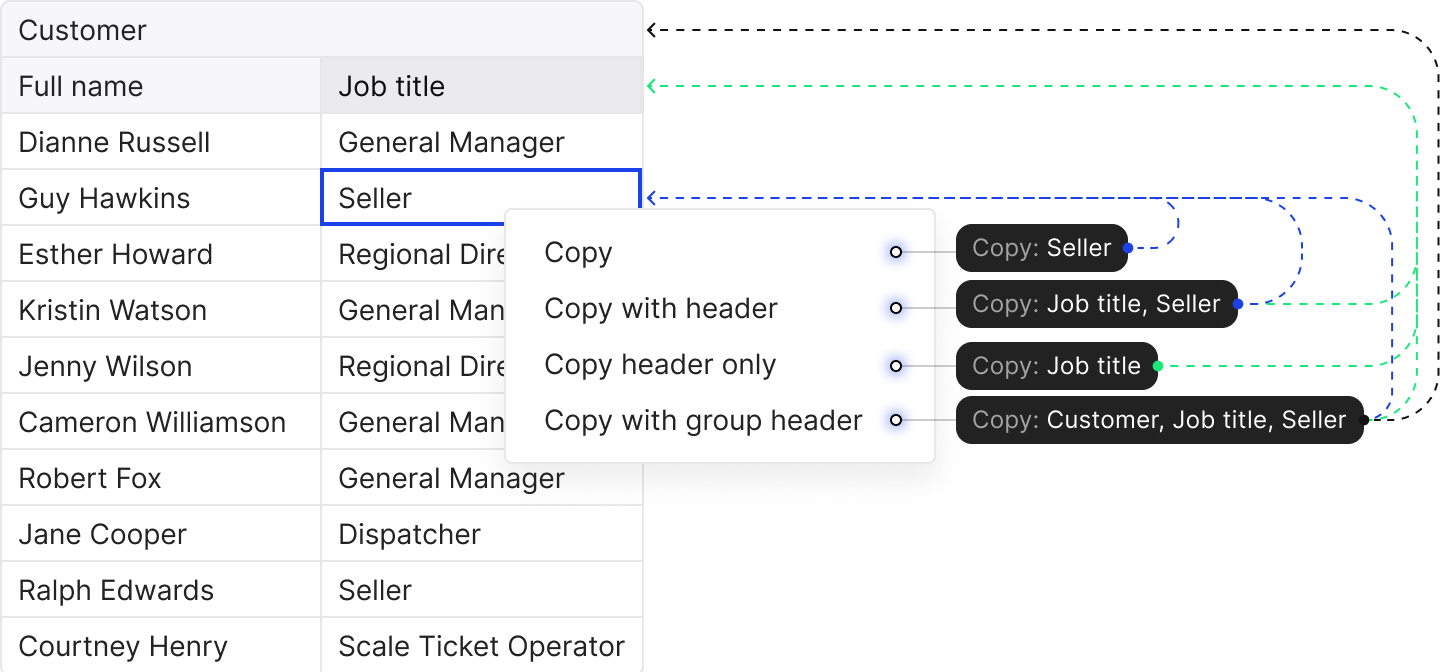
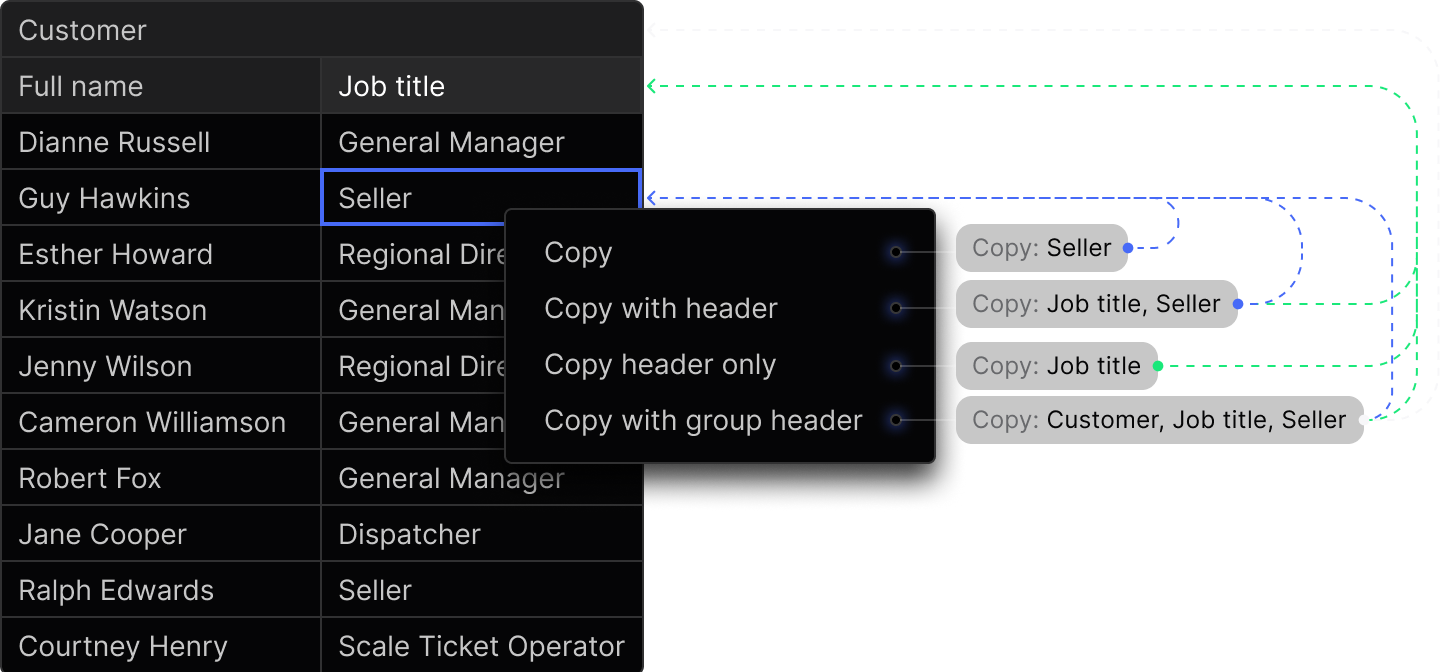
Right-click on a cell to try it out:
import Handsontable from 'handsontable/base';import { registerAllModules } from 'handsontable/registry';
// Register all Handsontable's modules.registerAllModules();
const container = document.querySelector('#example2');
new Handsontable(container, { data: [ ['A1', 'B1', 'C1', 'D1', 'E1', 'F1', 'G1', 'H1', 'I1', 'J1'], ['A2', 'B2', 'C2', 'D2', 'E2', 'F2', 'G2', 'H2', 'I2', 'J2'], ['A3', 'B3', 'C3', 'D3', 'E3', 'F3', 'G3', 'H3', 'I3', 'J3'], ['A4', 'B4', 'C4', 'D4', 'E4', 'F4', 'G4', 'H4', 'I4', 'J4'], ['A5', 'B5', 'C5', 'D5', 'E5', 'F5', 'G5', 'H5', 'I5', 'J5'], ], contextMenu: true, copyPaste: { copyColumnHeaders: true, copyColumnGroupHeaders: true, copyColumnHeadersOnly: true, }, colHeaders: true, rowHeaders: true, height: 'auto', nestedHeaders: [ [ 'A', { label: 'B', colspan: 2 }, { label: 'C', colspan: 2 }, { label: 'D', colspan: 2 }, { label: 'E', colspan: 2 }, 'F', ], ['G', 'H', 'I', 'J', 'K', 'L', 'M', 'N', 'O', 'P'], ], autoWrapRow: true, autoWrapCol: true, // licenseKey: 'your-license-key', // get a key at https://handsontable.com/pricing/});import Handsontable from 'handsontable/base';import { registerAllModules } from 'handsontable/registry';
// Register all Handsontable's modules.registerAllModules();
const container = document.querySelector('#example2')!;
new Handsontable(container, { data: [ ['A1', 'B1', 'C1', 'D1', 'E1', 'F1', 'G1', 'H1', 'I1', 'J1'], ['A2', 'B2', 'C2', 'D2', 'E2', 'F2', 'G2', 'H2', 'I2', 'J2'], ['A3', 'B3', 'C3', 'D3', 'E3', 'F3', 'G3', 'H3', 'I3', 'J3'], ['A4', 'B4', 'C4', 'D4', 'E4', 'F4', 'G4', 'H4', 'I4', 'J4'], ['A5', 'B5', 'C5', 'D5', 'E5', 'F5', 'G5', 'H5', 'I5', 'J5'], ], contextMenu: true, copyPaste: { copyColumnHeaders: true, copyColumnGroupHeaders: true, copyColumnHeadersOnly: true, }, colHeaders: true, rowHeaders: true, height: 'auto', nestedHeaders: [ [ 'A', { label: 'B', colspan: 2 }, { label: 'C', colspan: 2 }, { label: 'D', colspan: 2 }, { label: 'E', colspan: 2 }, 'F', ], ['G', 'H', 'I', 'J', 'K', 'L', 'M', 'N', 'O', 'P'], ], autoWrapRow: true, autoWrapCol: true, // licenseKey: 'your-license-key', // get a key at https://handsontable.com/pricing/});To add the context menu items, configure the CopyPaste plugin with these options:
copyPaste: { copyColumnHeaders: true, copyColumnGroupHeaders: true, copyColumnHeadersOnly: true,}To copy column headers programmatically, call the copyPaste.copy() method with these arguments:
// access the `CopyPaste` plugin instanceconst copyPastePlugin = hot.getPlugin('copyPaste');
// select some cellshot.selectCell(1, 1);
// copy the selected cells along with their nearest column headerscopyPastePlugin.copy('with-column-headers');
// copy the selected cells along with all their related columns// headerscopyPastePlugin.copy('with-all-column-headers');
// copy the column headers nearest to the selected cells// (without copying the cells themselves)copyPastePlugin.copy('column-headers-only');Paste
The Paste action allows the importing of data from external sources, using the user’s system clipboard. The CopyPaste plugin firstly looks for text/html in the system clipboard, followed by text/plain.
Rows of unequal length
Clipboard content does not always hold the same number of cells in every row. A row copied from a text editor, or a table exported by another application, can be shorter than the one below it.
Handsontable pastes such content as wide as its widest row. A shorter row covers the same
columns as the widest one, and the cells it has no value for are emptied, the way a spreadsheet
application pastes them. Those cells hold null, the same value that clearing a cell writes.
When the pasted content repeats to fill a larger selection, it repeats on that same width. Pasting two rows of three cells into a selection six columns wide writes the three cells twice per row.
A merged cell that reaches past the last column is trimmed to the columns that are there. A footer row spanning a table wider than the pasted data lands in one row, without adding empty columns.
The beforePaste and afterPaste hooks
receive the content already squared off to the widest row, so what they report matches what the grid
writes. To paste only the cells that were present, drop the empty ones in beforePaste.
Pasting wider than the grid
A paste that runs past the last column adds the columns it needs when the
data source is an array of arrays, you set no
columns option, and
allowInsertColumn is left on.
In every other configuration the column count is fixed. An object data source takes its columns
from the first row or from dataSchema, and a columns option
states them outright. What happens to the values that reach past the last column depends on the
configuration:
- With
allowInsertColumnset tofalse, the paste stops at the last column and drops them, whatever the data source. - On an array data source narrowed by a
columnsoption, they are written to the matching array indexes. No column displays them, andgetSourceData()returns them. - On an object data source, they are written to properties named after the column indexes, so no
column displays them.
getSourceData()returns those properties, andcountSourceCols()counts only the ones on the first row, because that method reads the first row’s keys.
Extending paste behavior
The parsePastedValue option controls how pasted content is written to cells when the user pastes from the clipboard into Handsontable (e.g. from another Handsontable instance or between cells in the same table). It does not affect how other applications read or process the clipboard.
By default (parsePastedValue: false), pasted content is written as plain strings. Non-scalar values such as objects are coerced to string (e.g. an object becomes "[object Object]"), which keeps the data model simple and avoids parsing clipboard text. Set parsePastedValue: true when you need to preserve JavaScript structures across paste: pasted text is then parsed (e.g. JSON-like content) and the resulting values are written to the data source, so you can copy and paste objects or arrays between cells or between instances. With parsing enabled, schema validation is relaxed so object-based values can be pasted into cells that would normally expect a scalar.
End-user usage
Available keyboard shortcuts:
- Ctrl/⌘+V - paste the content into the last cell in the selected range
Available options in the browser’s toolbar:
Edit > Paste- paste the content into the last cell in the selected range
Context menu
Due to security reasons, modern browsers disallow reading from the system clipboard. Learn more
Trigger paste programmatically
Due to security reasons, modern browsers disallow reading from the system clipboard. Learn more
Clean up pasted content before it is parsed
Content that comes from a spreadsheet application often carries formatting that Handsontable cannot use as a cell value, such as a regional number format. By the time beforePaste runs, the plugin has already sanitized and parsed the clipboard, and that formatting is gone.
To change the raw clipboard content, use the beforePasteParse hook. It fires on every paste the grid handles, before the plugin sanitizes and parses the clipboard.
The hook receives two arguments:
clipboardData- a writable copy of the clipboard. It works like a subset of the browser’sDataTransferobject: thetypesproperty lists the available formats,getData(type)returns a format (an empty string when the format is absent),setData(type, value)sets one, andclearData(type)removes one, or every format when you skip the argument. The formats aretext/plain,text/html, and the privateapplication/ht-source-data-json-htmlformat that Handsontable writes on copy.event- the nativeClipboardEvent, ornullwhen the paste comes from thepaste()method of the plugin.
Editing clipboardData doesn’t change the system clipboard. Keep these rules in mind:
- If the
text/htmlformat contains a<table>, it wins overtext/plain. A spreadsheet application always puts such a table on the clipboard. When your callback cleans onlytext/plain, also callclipboardData.clearData('text/html'). - If your callback changes
text/plainortext/htmland leaves theapplication/ht-source-data-json-htmlformat untouched, the plugin drops that format. Otherwise, theparsePastedValueoption would bring back the values you just cleaned. - The
text/htmlandapplication/ht-source-data-json-htmlformats still go through thesanitizeroption after your callback. - The hook is synchronous. The plugin doesn’t wait for a returned
Promise. - Don’t call
paste()from the callback. EditclipboardDatainstead. - Return
falseto cancel the paste, or return nothing. The hook passes a returned value (falseincluded) to the next callback as itsclipboardData, so returnfalseonly from the last callback or the only one, and never return any other value. - The hook doesn’t fire when the plugin is disabled, when the grid isn’t listening for keyboard input, when nothing is selected, when a cell editor is open, or when the paste targets an element outside the grid.
The hook runs inside the paste handler of the plugin. It works in a shadow DOM and in Salesforce Lightning Web Security, where a capturing paste listener on the window object doesn’t.
The following example converts prices copied from a spreadsheet in a European number format (1 234,50) to plain numbers (1234.50). Copy Wireless mouse, 1 234,50, and 142 from a spreadsheet application, and paste them into the grid.
import Handsontable from 'handsontable/base';import { registerAllModules } from 'handsontable/registry';
// Register all Handsontable's modules.registerAllModules();
const container = document.querySelector('#example6');
// Convert "1 234,50" (space or non-breaking space as the thousands separator,// comma as the decimal separator) to "1234.50".function toPlainNumbers(text) { return text.replace(/(\d)[\u00a0\u202f ](?=\d{3}\b)/g, '$1').replace(/(\d),(\d)/g, '$1.$2');}
new Handsontable(container, { data: [ ['Wireless mouse', 24.9, 142], ['USB-C cable', 9.5, 67], ['Mechanical keyboard', 89, 0], ['Laptop stand', 45.25, 38], ['HDMI adapter', 12.75, 210], ], colHeaders: ['Product', 'Unit price', 'Stock'], columns: [{}, { type: 'numeric', numericFormat: { pattern: '0,0.00' } }, { type: 'numeric' }], rowHeaders: true, beforePasteParse(clipboardData) { clipboardData.setData('text/plain', toPlainNumbers(clipboardData.getData('text/plain'))); // A spreadsheet also puts a <table> in text/html, and it wins over text/plain. clipboardData.clearData('text/html'); }, height: 'auto', autoWrapRow: true, autoWrapCol: true, // licenseKey: 'your-license-key', // get a key at https://handsontable.com/pricing/});import Handsontable from 'handsontable/base';import type { PasteClipboardData } from 'handsontable/base';import { registerAllModules } from 'handsontable/registry';
// Register all Handsontable's modules.registerAllModules();
const container = document.querySelector('#example6')!;
// Convert "1 234,50" (space or non-breaking space as the thousands separator,// comma as the decimal separator) to "1234.50".function toPlainNumbers(text: string): string { return text.replace(/(\d)[\u00a0\u202f ](?=\d{3}\b)/g, '$1').replace(/(\d),(\d)/g, '$1.$2');}
new Handsontable(container, { data: [ ['Wireless mouse', 24.9, 142], ['USB-C cable', 9.5, 67], ['Mechanical keyboard', 89, 0], ['Laptop stand', 45.25, 38], ['HDMI adapter', 12.75, 210], ], colHeaders: ['Product', 'Unit price', 'Stock'], columns: [{}, { type: 'numeric', numericFormat: { pattern: '0,0.00' } }, { type: 'numeric' }], rowHeaders: true, beforePasteParse(clipboardData: PasteClipboardData) { clipboardData.setData('text/plain', toPlainNumbers(clipboardData.getData('text/plain'))); // A spreadsheet also puts a <table> in text/html, and it wins over text/plain. clipboardData.clearData('text/html'); }, height: 'auto', autoWrapRow: true, autoWrapCol: true, // licenseKey: 'your-license-key', // get a key at https://handsontable.com/pricing/});Cancel a paste
To block a paste, return false from the callback. The plugin writes nothing, and the beforePaste and afterPaste hooks don’t fire.
beforePasteParse(clipboardData, event) { // Reject pastes that carry no plain text, such as a pasted image if (!clipboardData.getData('text/plain')) { return false; }},Related: beforePasteParse
Paste hooks
The CopyPaste plugin exposes the following hooks to manipulate data during the pasting operation:
The hooks run in this order: beforePasteParse, then beforePaste, then afterPaste.
afterPaste doesn’t wait for the values to be written. The order depends on whether any pasted cell has a validator:
- With a validator.
afterPasteruns before Handsontable writes any pasted value, including the cells without a validator. The validator runs afterafterPaste, so a cell still holds its previous value andvalidflag. If the paste adds rows,afterPastealso runs before those rows exist. The order is thenafterPaste,afterCreateRow, andafterChange. - Without a validator.
afterChangeruns first andafterPastefollows. A paste that adds rows runsafterCreateRowbeforeafterChange.
A cell has a validator when you set one, when its cell type provides one (for example numeric, date, dropdown, or autocomplete), or when you set a maxLength that is a finite number of 0 or more.
To change or cancel the pasted values, use beforePaste. To react once the cells hold the new values, use afterChange and check for the 'CopyPaste.paste' source. When the copyPaste option sets pasteMode to 'shift_down' or 'shift_right', the source is 'populateFromArray'.
Examples of how to use them are provided in their descriptions.
Copy cell appearance on paste
The CopyPaste plugin copies cell values by default. To copy cell appearance, save each copied or cut cell’s className metadata in afterCopy and afterCut, and then apply it to the pasted range in afterPaste.
className doesn’t depend on the pasted values, so afterPaste works here, also with validators and with pastes that add rows. Use afterChange instead in these cases:
- The grid trims or filters rows, and a paste with validators adds rows.
afterPasteruns before those rows exist, so the metadata lands on another row. allowInsertRowormaxRowscan cut a paste short. The metadata for the rows that never exist stays behind, and a row added later can inherit it.- Your code reads the pasted values or the row count.
See Paste hooks.
Copy or cut a styled range from the grid, and paste it into another range to copy the cell values and appearance.
import Handsontable from 'handsontable/base';import { registerAllModules } from 'handsontable/registry';// Register all Handsontable's modules.registerAllModules();const container = document.querySelector('#example4');let copiedClassNames = [];function collectClassNames(hot, coords) { const source = coords[0]; const classNames = []; if (!source) { return classNames; } for (let row = source.startRow; row <= source.endRow; row += 1) { const rowClassNames = []; for (let col = source.startCol; col <= source.endCol; col += 1) { rowClassNames.push(hot.getCellMeta(row, col).className ?? ''); } classNames.push(rowClassNames); } return classNames;}function applyClassNames(hot, coords) { const target = coords[0]; if (!target) { return; } hot.batch(() => { copiedClassNames.forEach((rowClassNames, rowOffset) => { rowClassNames.forEach((className, colOffset) => { hot.setCellMeta(target.startRow + rowOffset, target.startCol + colOffset, 'className', className); }); }); }); hot.render();}new Handsontable(container, { data: [ ['Wireless mouse', 142, 'In stock'], ['USB-C cable', 67, 'In stock'], ['Mechanical keyboard', 0, 'Backordered'], ['Laptop stand', 38, 'In stock'], ['HDMI adapter', 210, 'In stock'], ], colHeaders: ['Product', 'Stock', 'Status'], rowHeaders: true, cell: [ { row: 0, col: 1, className: 'htRight' }, { row: 0, col: 2, className: 'htCenter' }, { row: 2, col: 1, className: 'htRight htDimmed' }, { row: 2, col: 2, className: 'htCenter htDimmed' }, ], afterCopy(_data, coords) { copiedClassNames = collectClassNames(this, coords); }, afterCut(_data, coords) { copiedClassNames = collectClassNames(this, coords); }, afterPaste(_data, coords) { applyClassNames(this, coords); }, height: 'auto', autoWrapRow: true, autoWrapCol: true, // licenseKey: 'your-license-key', // get a key at https://handsontable.com/pricing/});import Handsontable from 'handsontable/base';import { registerAllModules } from 'handsontable/registry';
type CopyRange = { startRow: number; startCol: number; endRow: number; endCol: number };
// Register all Handsontable's modules.registerAllModules();
const container = document.querySelector('#example4')!;let copiedClassNames: string[][] = [];
function collectClassNames(hot: Handsontable, coords: CopyRange[]): string[][] { const source = coords[0]; const classNames: string[][] = [];
if (!source) { return classNames; }
for (let row = source.startRow; row <= source.endRow; row += 1) { const rowClassNames: string[] = [];
for (let col = source.startCol; col <= source.endCol; col += 1) { rowClassNames.push((hot.getCellMeta(row, col).className as string | undefined) ?? ''); }
classNames.push(rowClassNames); }
return classNames;}
function applyClassNames(hot: Handsontable, coords: CopyRange[]): void { const target = coords[0];
if (!target) { return; }
hot.batch(() => { copiedClassNames.forEach((rowClassNames, rowOffset) => { rowClassNames.forEach((className, colOffset) => { hot.setCellMeta(target.startRow + rowOffset, target.startCol + colOffset, 'className', className); }); }); });
hot.render();}
new Handsontable(container, { data: [ ['Wireless mouse', 142, 'In stock'], ['USB-C cable', 67, 'In stock'], ['Mechanical keyboard', 0, 'Backordered'], ['Laptop stand', 38, 'In stock'], ['HDMI adapter', 210, 'In stock'], ], colHeaders: ['Product', 'Stock', 'Status'], rowHeaders: true, cell: [ { row: 0, col: 1, className: 'htRight' }, { row: 0, col: 2, className: 'htCenter' }, { row: 2, col: 1, className: 'htRight htDimmed' }, { row: 2, col: 2, className: 'htCenter htDimmed' }, ], afterCopy(_data, coords) { copiedClassNames = collectClassNames(this, coords as CopyRange[]); }, afterCut(_data, coords) { copiedClassNames = collectClassNames(this, coords as CopyRange[]); }, afterPaste(_data, coords) { applyClassNames(this, coords as CopyRange[]); }, height: 'auto', autoWrapRow: true, autoWrapCol: true, // licenseKey: 'your-license-key', // get a key at https://handsontable.com/pricing/});Copy comments on paste
To copy cell comments, enable the Comments plugin. Then use getCommentAtCell() in afterCopy and afterCut, and setCommentAtCell() in afterPaste. Comments don’t depend on the pasted values, so afterPaste works here, also with validators and with pastes that add rows. The same exceptions as for copying cell appearance apply: use afterChange when the grid trims or filters rows, when allowInsertRow or maxRows can cut a paste short, or when your code reads the pasted values or the row count. See Copy cell appearance on paste and Paste hooks.
Copy or cut a commented range from the grid, and paste it into another range to copy the cell values and comments.
import Handsontable from 'handsontable/base';import { registerAllModules } from 'handsontable/registry';// Register all Handsontable's modules.registerAllModules();const container = document.querySelector('#example5');let copiedComments = [];function collectComments(hot, coords) { const source = coords[0]; const comments = hot.getPlugin('comments'); const copied = []; if (!source) { return copied; } for (let row = source.startRow; row <= source.endRow; row += 1) { const rowComments = []; for (let col = source.startCol; col <= source.endCol; col += 1) { rowComments.push(comments.getCommentAtCell(row, col)); } copied.push(rowComments); } return copied;}function applyComments(hot, coords) { const target = coords[0]; const comments = hot.getPlugin('comments'); if (!target) { return; } hot.batch(() => { copiedComments.forEach((rowComments, rowOffset) => { rowComments.forEach((comment, colOffset) => { const row = target.startRow + rowOffset; const col = target.startCol + colOffset; if (comment) { comments.setCommentAtCell(row, col, comment); } else { comments.removeCommentAtCell(row, col, false); } }); }); }); hot.render();}new Handsontable(container, { data: [ ['Wireless mouse', 142, 'In stock'], ['USB-C cable', 67, 'In stock'], ['Mechanical keyboard', 0, 'Backordered'], ['Laptop stand', 38, 'In stock'], ['HDMI adapter', 210, 'In stock'], ], colHeaders: ['Product', 'Stock', 'Status'], rowHeaders: true, comments: true, cell: [ { row: 0, col: 1, comment: { value: 'Counted during the July audit.' } }, { row: 2, col: 1, comment: { value: 'Reorder request sent to Harbor Goods.' } }, { row: 2, col: 2, comment: { value: 'Expected delivery is July 18.' } }, ], afterCopy(_data, coords) { copiedComments = collectComments(this, coords); }, afterCut(_data, coords) { copiedComments = collectComments(this, coords); }, afterPaste(_data, coords) { applyComments(this, coords); }, height: 'auto', autoWrapRow: true, autoWrapCol: true, // licenseKey: 'your-license-key', // get a key at https://handsontable.com/pricing/});import Handsontable from 'handsontable/base';import { registerAllModules } from 'handsontable/registry';
type CopyRange = { startRow: number; startCol: number; endRow: number; endCol: number };
// Register all Handsontable's modules.registerAllModules();
const container = document.querySelector('#example5')!;let copiedComments: (string | undefined)[][] = [];
function collectComments(hot: Handsontable, coords: CopyRange[]): (string | undefined)[][] { const source = coords[0]; const comments = hot.getPlugin('comments'); const copied: (string | undefined)[][] = [];
if (!source) { return copied; }
for (let row = source.startRow; row <= source.endRow; row += 1) { const rowComments: (string | undefined)[] = [];
for (let col = source.startCol; col <= source.endCol; col += 1) { rowComments.push(comments.getCommentAtCell(row, col)); }
copied.push(rowComments); }
return copied;}
function applyComments(hot: Handsontable, coords: CopyRange[]): void { const target = coords[0]; const comments = hot.getPlugin('comments');
if (!target) { return; }
hot.batch(() => { copiedComments.forEach((rowComments, rowOffset) => { rowComments.forEach((comment, colOffset) => { const row = target.startRow + rowOffset; const col = target.startCol + colOffset;
if (comment) { comments.setCommentAtCell(row, col, comment); } else { comments.removeCommentAtCell(row, col, false); } }); }); });
hot.render();}
new Handsontable(container, { data: [ ['Wireless mouse', 142, 'In stock'], ['USB-C cable', 67, 'In stock'], ['Mechanical keyboard', 0, 'Backordered'], ['Laptop stand', 38, 'In stock'], ['HDMI adapter', 210, 'In stock'], ], colHeaders: ['Product', 'Stock', 'Status'], rowHeaders: true, comments: true, cell: [ { row: 0, col: 1, comment: { value: 'Counted during the July audit.' } }, { row: 2, col: 1, comment: { value: 'Reorder request sent to Harbor Goods.' } }, { row: 2, col: 2, comment: { value: 'Expected delivery is July 18.' } }, ], afterCopy(_data, coords) { copiedComments = collectComments(this, coords as CopyRange[]); }, afterCut(_data, coords) { copiedComments = collectComments(this, coords as CopyRange[]); }, afterPaste(_data, coords) { applyComments(this, coords as CopyRange[]); }, height: 'auto', autoWrapRow: true, autoWrapCol: true, // licenseKey: 'your-license-key', // get a key at https://handsontable.com/pricing/});Known limitations
- The
CopyPasteplugin doesn’t copy, cut or paste cells’ appearance by default. To copy a cell’sclassNamemetadata, see Copy cell appearance on paste. - The data copied from Handsontable will always remain as plain text. For example, if you copy a checked checkbox, the input will be kept as the value of
'true'. document.execCommandcan be called only during an immediate-execute event, such as aMouseEventor aKeyboardEvent.- Clipboard operations don’t work in Chrome 133+ with Handsontable 14.6.0, 14.6.1, or 15.0.0. Update to 14.6.2 or 15.0.1+. See the incident announcement for details.
Result
Users can copy, cut, and paste cell data using keyboard shortcuts or the context menu. Programmatic copy and cut operations work by calling document.execCommand() after selecting the target cells.
Related keyboard shortcuts
| Windows | macOS | Action | Excel | Sheets |
|---|---|---|---|---|
| Ctrl+X | ⌘+X | Cut the contents of the selected cells to the system clipboard | ✓ | ✓ |
| Ctrl+C | ⌘+C | Copy the contents of the selected cells to the system clipboard | ✓ | ✓ |
| Ctrl+V | ⌘+V | Paste from the system clipboard | ✓ | ✓ |
Related blog articles
Related API reference
Configuration options
Core methods
Hooks
Plugins