

Clipboard
Copy data from selected cells to the system clipboard.
Handsontable supports copy, cut, and paste via the browser clipboard API and keyboard shortcuts. Configure clipboard behavior to control what data users can copy or paste.
Overview
You can copy or cut data from Handsontable to the system clipboard, either manually (using the context menu or the Ctrl/⌘+C/X shortcuts) or programmatically (using Handsontable’s API methods).
Copy & cut
Copy & Cut actions allow exporting data from Handsontable to the system clipboard. The CopyPaste plugin copies and cuts data as a text/plain and a text/html MIME-type.
End-user usage
Available keyboard shortcuts:
- Ctrl/⌘+C - copies the content of the last cell in the selected range
- Ctrl/⌘+X - cuts the content of the last cell in the selected range
Available options in the browser’s toolbar:
Edit > Copy- copies the content of the last cell in the selected rangeEdit > Cut- cuts the content of the last cell in the selected range
To let the end user copy the contents of column headers, see the Copy with headers section.
Context menu
When the context menu is enabled, it includes default items, including copy & cut options.
- Copy - as a predefined key
copy - Cut - as a predefined key
cut
You can use them in the same way as the rest of the predefined items in the context menu. These operations are executed by document.execCommand().
import { HotTable } from '@handsontable/react-wrapper';import { registerAllModules } from 'handsontable/registry';
// register Handsontable's modulesregisterAllModules();
const ExampleComponent = () => { return ( <HotTable data={[ ['A1', 'B1', 'C1', 'D1', 'E1'], ['A2', 'B2', 'C2', 'D2', 'E2'], ['A3', 'B3', 'C3', 'D3', 'E3'], ['A4', 'B4', 'C4', 'D4', 'E4'], ['A5', 'B5', 'C5', 'D5', 'E5'], ]} rowHeaders={true} colHeaders={true} contextMenu={['copy', 'cut']} height="auto" autoWrapRow={true} autoWrapCol={true} licenseKey="non-commercial-and-evaluation" /> );};
export default ExampleComponent;import { HotTable } from '@handsontable/react-wrapper';import { registerAllModules } from 'handsontable/registry';
// register Handsontable's modulesregisterAllModules();
const ExampleComponent = () => { return ( <HotTable data={[ ['A1', 'B1', 'C1', 'D1', 'E1'], ['A2', 'B2', 'C2', 'D2', 'E2'], ['A3', 'B3', 'C3', 'D3', 'E3'], ['A4', 'B4', 'C4', 'D4', 'E4'], ['A5', 'B5', 'C5', 'D5', 'E5'], ]} rowHeaders={true} colHeaders={true} contextMenu={['copy', 'cut']} height="auto" autoWrapRow={true} autoWrapCol={true} licenseKey="non-commercial-and-evaluation" /> );};
export default ExampleComponent;Trigger copy & cut programmatically
First, select a cell range to copy or cut.
hot.selectCell(1, 1);Then use one of the following commands:
document.execCommand('copy')document.execCommand('cut')
The CopyPaste plugin listens to the browser’s copy and cut events. If triggered, our implementation will copy or cut the selected data to the system clipboard.
import { useRef } from 'react';import { HotTable } from '@handsontable/react-wrapper';import { registerAllModules } from 'handsontable/registry';
// register Handsontable's modulesregisterAllModules();
const ExampleComponent = () => { const hotRef = useRef(null); const copyBtnClickCallback = function () { document.execCommand('copy'); };
const cutBtnClickCallback = function () { document.execCommand('cut'); };
const copyBtnMousedownCallback = () => { const hot = hotRef.current?.hotInstance;
hot?.selectCell(1, 1); };
const cutBtnMousedownCallback = () => { const hot = hotRef.current?.hotInstance;
hot?.selectCell(1, 1); };
return ( <> <div className="example-controls-container"> <div className="controls"> <button id="copy" onMouseDown={() => copyBtnMousedownCallback()} onClick={() => copyBtnClickCallback()}> Select and copy cell B2 </button> <button id="cut" onMouseDown={() => cutBtnMousedownCallback()} onClick={() => cutBtnClickCallback()}> Select and cut cell B2 </button> </div> </div> <HotTable ref={hotRef} rowHeaders={true} colHeaders={true} data={[ ['A1', 'B1', 'C1', 'D1', 'E1'], ['A2', 'B2', 'C2', 'D2', 'E2'], ['A3', 'B3', 'C3', 'D3', 'E3'], ['A4', 'B4', 'C4', 'D4', 'E4'], ['A5', 'B5', 'C5', 'D5', 'E5'], ]} outsideClickDeselects={false} height="auto" autoWrapRow={true} autoWrapCol={true} licenseKey="non-commercial-and-evaluation" /> </> );};
export default ExampleComponent;import { useRef } from 'react';import { HotTable, HotTableRef } from '@handsontable/react-wrapper';import { registerAllModules } from 'handsontable/registry';
// register Handsontable's modulesregisterAllModules();
const ExampleComponent = () => { const hotRef = useRef<HotTableRef>(null);
const copyBtnClickCallback = function () { document.execCommand('copy'); };
const cutBtnClickCallback = function () { document.execCommand('cut'); };
const copyBtnMousedownCallback = () => { const hot = hotRef.current?.hotInstance;
hot?.selectCell(1, 1); };
const cutBtnMousedownCallback = () => { const hot = hotRef.current?.hotInstance;
hot?.selectCell(1, 1); };
return ( <> <div className="example-controls-container"> <div className="controls"> <button id="copy" onMouseDown={() => copyBtnMousedownCallback()} onClick={() => copyBtnClickCallback()}> Select and copy cell B2 </button> <button id="cut" onMouseDown={() => cutBtnMousedownCallback()} onClick={() => cutBtnClickCallback()}> Select and cut cell B2 </button> </div> </div> <HotTable ref={hotRef} rowHeaders={true} colHeaders={true} data={[ ['A1', 'B1', 'C1', 'D1', 'E1'], ['A2', 'B2', 'C2', 'D2', 'E2'], ['A3', 'B3', 'C3', 'D3', 'E3'], ['A4', 'B4', 'C4', 'D4', 'E4'], ['A5', 'B5', 'C5', 'D5', 'E5'], ]} outsideClickDeselects={false} height="auto" autoWrapRow={true} autoWrapCol={true} licenseKey="non-commercial-and-evaluation" /> </> );};
export default ExampleComponent;Mind that some of Handsontable’s selection-related methods don’t set focus on your grid automatically. To make sure that your grid is focused, call isListening() before you copy, cut or paste data.
Hooks
The CopyPaste plugin exposes the following hooks to manipulate data during copy or cut operations:
Examples of how to use them are provided in their descriptions.
Copy with headers
You can let the end user copy the contents of column headers, by enabling additional context menu items:
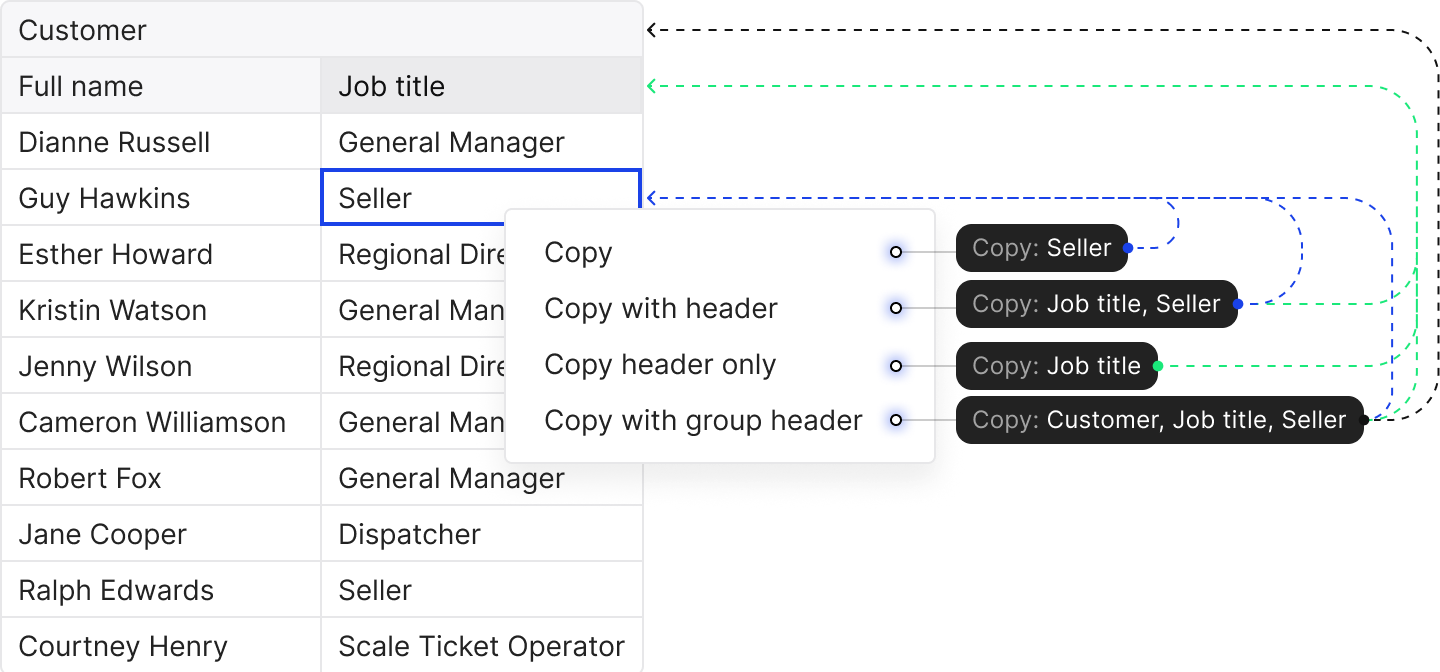
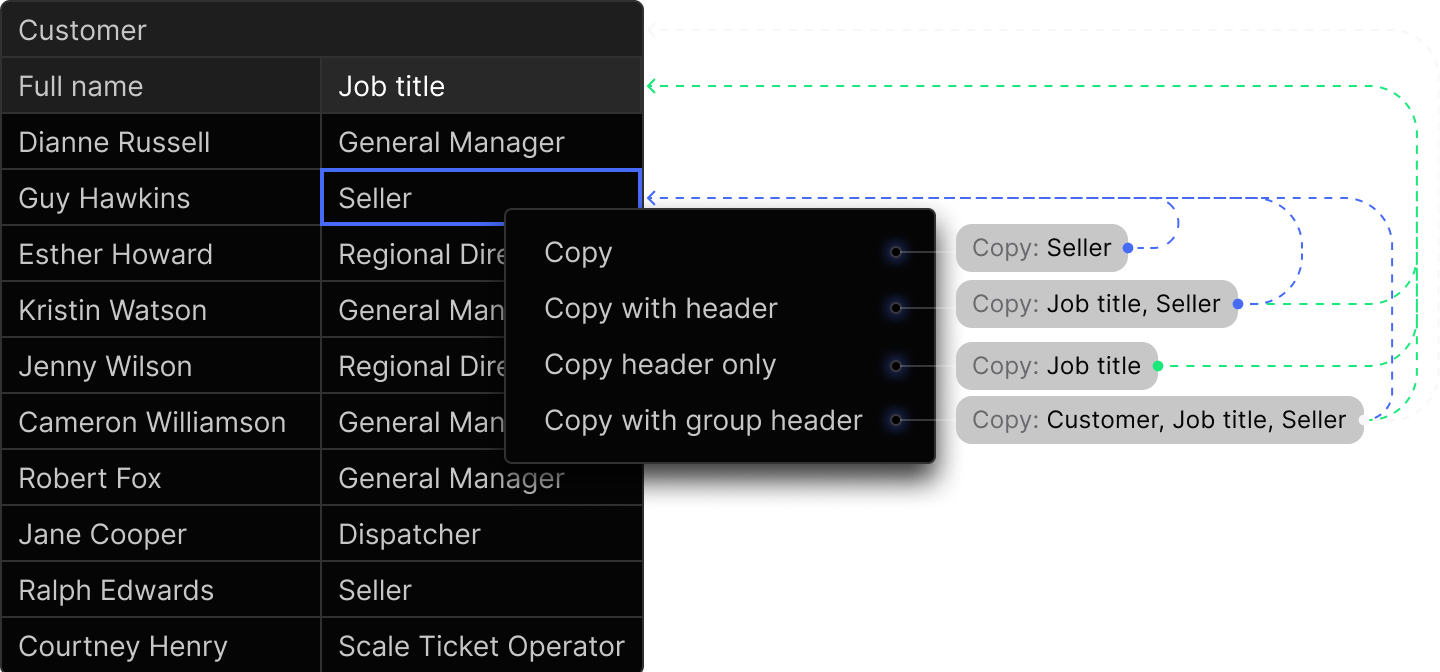
Right-click on a cell to try it out:
import { HotTable } from '@handsontable/react-wrapper';import { registerAllModules } from 'handsontable/registry';
// register Handsontable's modulesregisterAllModules();
const ExampleComponent = () => { return ( <HotTable data={[ ['A1', 'B1', 'C1', 'D1', 'E1', 'F1', 'G1', 'H1', 'I1', 'J1'], ['A2', 'B2', 'C2', 'D2', 'E2', 'F2', 'G2', 'H2', 'I2', 'J2'], ['A3', 'B3', 'C3', 'D3', 'E3', 'F3', 'G3', 'H3', 'I3', 'J3'], ['A4', 'B4', 'C4', 'D4', 'E4', 'F4', 'G4', 'H4', 'I4', 'J4'], ['A5', 'B5', 'C5', 'D5', 'E5', 'F5', 'G5', 'H5', 'I5', 'J5'], ]} contextMenu={true} copyPaste={{ copyColumnHeaders: true, copyColumnGroupHeaders: true, copyColumnHeadersOnly: true, }} colHeaders={true} rowHeaders={true} height="auto" nestedHeaders={[ [ 'A', { label: 'B', colspan: 2 }, { label: 'C', colspan: 2 }, { label: 'D', colspan: 2 }, { label: 'E', colspan: 2 }, 'F', ], ['G', 'H', 'I', 'J', 'K', 'L', 'M', 'N', 'O', 'P'], ]} autoWrapRow={true} autoWrapCol={true} licenseKey="non-commercial-and-evaluation" /> );};
export default ExampleComponent;import { HotTable } from '@handsontable/react-wrapper';import { registerAllModules } from 'handsontable/registry';
// register Handsontable's modulesregisterAllModules();
const ExampleComponent = () => { return ( <HotTable data={[ ['A1', 'B1', 'C1', 'D1', 'E1', 'F1', 'G1', 'H1', 'I1', 'J1'], ['A2', 'B2', 'C2', 'D2', 'E2', 'F2', 'G2', 'H2', 'I2', 'J2'], ['A3', 'B3', 'C3', 'D3', 'E3', 'F3', 'G3', 'H3', 'I3', 'J3'], ['A4', 'B4', 'C4', 'D4', 'E4', 'F4', 'G4', 'H4', 'I4', 'J4'], ['A5', 'B5', 'C5', 'D5', 'E5', 'F5', 'G5', 'H5', 'I5', 'J5'], ]} contextMenu={true} copyPaste={{ copyColumnHeaders: true, copyColumnGroupHeaders: true, copyColumnHeadersOnly: true, }} colHeaders={true} rowHeaders={true} height="auto" nestedHeaders={[ [ 'A', { label: 'B', colspan: 2 }, { label: 'C', colspan: 2 }, { label: 'D', colspan: 2 }, { label: 'E', colspan: 2 }, 'F', ], ['G', 'H', 'I', 'J', 'K', 'L', 'M', 'N', 'O', 'P'], ]} autoWrapRow={true} autoWrapCol={true} licenseKey="non-commercial-and-evaluation" /> );};
export default ExampleComponent;To add the context menu items, configure the CopyPaste plugin with these options:
copyPaste: { copyColumnHeaders: true, copyColumnGroupHeaders: true, copyColumnHeadersOnly: true,}To copy column headers programmatically, call the copyPaste.copy() method with these arguments:
// access the `CopyPaste` plugin instanceconst copyPastePlugin = hot.getPlugin('copyPaste');
// select some cellshot.selectCell(1, 1);
// copy the selected cells along with their nearest column headerscopyPastePlugin.copy('with-column-headers');
// copy the selected cells along with all their related columns// headerscopyPastePlugin.copy('with-all-column-headers');
// copy the column headers nearest to the selected cells// (without copying the cells themselves)copyPastePlugin.copy('column-headers-only');Paste
The Paste action allows the importing of data from external sources, using the user’s system clipboard. The CopyPaste plugin firstly looks for text/html in the system clipboard, followed by text/plain.
Rows of unequal length
Clipboard content does not always hold the same number of cells in every row. A row copied from a text editor, or a table exported by another application, can be shorter than the one below it.
Handsontable pastes such content as wide as its widest row. A shorter row covers the same
columns as the widest one, and the cells it has no value for are emptied, the way a spreadsheet
application pastes them. Those cells hold null, the same value that clearing a cell writes.
When the pasted content repeats to fill a larger selection, it repeats on that same width. Pasting two rows of three cells into a selection six columns wide writes the three cells twice per row.
A merged cell that reaches past the last column is trimmed to the columns that are there. A footer row spanning a table wider than the pasted data lands in one row, without adding empty columns.
The beforePaste and afterPaste hooks
receive the content already squared off to the widest row, so what they report matches what the grid
writes. To paste only the cells that were present, drop the empty ones in beforePaste.
Pasting wider than the grid
A paste that runs past the last column adds the columns it needs when the
data source is an array of arrays, you set no
columns option, and
allowInsertColumn is left on.
In every other configuration the column count is fixed. An object data source takes its columns
from the first row or from dataSchema, and a columns option
states them outright. The values that reach past the last column are still written, but to a
property named after the column index, so no column displays them.
getSourceData() returns those properties, and
countSourceCols() counts only the ones on the first row, because that method
reads the first row’s keys.
Extending paste behavior
The parsePastedValue option controls how pasted content is written to cells when the user pastes from the clipboard into Handsontable (e.g. from another Handsontable instance or between cells in the same table). It does not affect how other applications read or process the clipboard.
By default (parsePastedValue: false), pasted content is written as plain strings. Non-scalar values such as objects are coerced to string (e.g. an object becomes "[object Object]"), which keeps the data model simple and avoids parsing clipboard text. Set parsePastedValue: true when you need to preserve JavaScript structures across paste: pasted text is then parsed (e.g. JSON-like content) and the resulting values are written to the data source, so you can copy and paste objects or arrays between cells or between instances. With parsing enabled, schema validation is relaxed so object-based values can be pasted into cells that would normally expect a scalar.
End-user usage
Available keyboard shortcuts:
- Ctrl/⌘+V - paste the content into the last cell in the selected range
Available options in the browser’s toolbar:
Edit > Paste- paste the content into the last cell in the selected range
Context menu
Due to security reasons, modern browsers disallow reading from the system clipboard. Learn more
Trigger paste programmatically
Due to security reasons, modern browsers disallow reading from the system clipboard. Learn more
Hooks
The CopyPaste plugin exposes the following hooks to manipulate data during the pasting operation:
Examples of how to use them are provided in their descriptions.
Copy cell appearance on paste
The CopyPaste plugin copies cell values by default. To copy cell appearance, save each copied or cut cell’s className metadata in afterCopy and afterCut, and then apply it to the pasted range in afterPaste.
Copy or cut a styled range from the grid, and paste it into another range to copy the cell values and appearance.
import { useRef } from 'react';import { HotTable } from '@handsontable/react-wrapper';import { registerAllModules } from 'handsontable/registry';
// register Handsontable's modulesregisterAllModules();
function collectClassNames(hot, coords) { const source = coords[0]; const classNames = [];
if (!source) { return classNames; }
for (let row = source.startRow; row <= source.endRow; row += 1) { const rowClassNames = [];
for (let col = source.startCol; col <= source.endCol; col += 1) { rowClassNames.push(hot.getCellMeta(row, col).className ?? ''); }
classNames.push(rowClassNames); }
return classNames;}
const ExampleComponent = () => { const copiedClassNames = useRef([]);
return ( <HotTable data={[ ['Wireless mouse', 142, 'In stock'], ['USB-C cable', 67, 'In stock'], ['Mechanical keyboard', 0, 'Backordered'], ['Laptop stand', 38, 'In stock'], ['HDMI adapter', 210, 'In stock'], ]} colHeaders={['Product', 'Stock', 'Status']} rowHeaders={true} cell={[ { row: 0, col: 1, className: 'htRight' }, { row: 0, col: 2, className: 'htCenter' }, { row: 2, col: 1, className: 'htRight htDimmed' }, { row: 2, col: 2, className: 'htCenter htDimmed' }, ]} afterCopy={function (_data, coords) { copiedClassNames.current = collectClassNames(this, coords); }} afterCut={function (_data, coords) { copiedClassNames.current = collectClassNames(this, coords); }} afterPaste={function (_data, coords) { const target = coords[0];
if (!target) { return; }
this.batch(() => { copiedClassNames.current.forEach((rowClassNames, rowOffset) => { rowClassNames.forEach((className, colOffset) => { this.setCellMeta(target.startRow + rowOffset, target.startCol + colOffset, 'className', className); }); }); });
this.render(); }} height="auto" autoWrapRow={true} autoWrapCol={true} licenseKey="non-commercial-and-evaluation" /> );};
export default ExampleComponent;import { useRef } from 'react';import Handsontable from 'handsontable/base';import { HotTable } from '@handsontable/react-wrapper';import { registerAllModules } from 'handsontable/registry';
type CopyRange = { startRow: number; startCol: number; endRow: number; endCol: number };
// register Handsontable's modulesregisterAllModules();
function collectClassNames(hot: Handsontable, coords: CopyRange[]): string[][] { const source = coords[0]; const classNames: string[][] = [];
if (!source) { return classNames; }
for (let row = source.startRow; row <= source.endRow; row += 1) { const rowClassNames: string[] = [];
for (let col = source.startCol; col <= source.endCol; col += 1) { rowClassNames.push((hot.getCellMeta(row, col).className as string | undefined) ?? ''); }
classNames.push(rowClassNames); }
return classNames;}
const ExampleComponent = () => { const copiedClassNames = useRef<string[][]>([]);
return ( <HotTable data={[ ['Wireless mouse', 142, 'In stock'], ['USB-C cable', 67, 'In stock'], ['Mechanical keyboard', 0, 'Backordered'], ['Laptop stand', 38, 'In stock'], ['HDMI adapter', 210, 'In stock'], ]} colHeaders={['Product', 'Stock', 'Status']} rowHeaders={true} cell={[ { row: 0, col: 1, className: 'htRight' }, { row: 0, col: 2, className: 'htCenter' }, { row: 2, col: 1, className: 'htRight htDimmed' }, { row: 2, col: 2, className: 'htCenter htDimmed' }, ]} afterCopy={function (this: Handsontable, _data, coords) { copiedClassNames.current = collectClassNames(this, coords as CopyRange[]); }} afterCut={function (this: Handsontable, _data, coords) { copiedClassNames.current = collectClassNames(this, coords as CopyRange[]); }} afterPaste={function (this: Handsontable, _data, coords) { const target = (coords as CopyRange[])[0];
if (!target) { return; }
this.batch(() => { copiedClassNames.current.forEach((rowClassNames, rowOffset) => { rowClassNames.forEach((className, colOffset) => { this.setCellMeta(target.startRow + rowOffset, target.startCol + colOffset, 'className', className); }); }); });
this.render(); }} height="auto" autoWrapRow={true} autoWrapCol={true} licenseKey="non-commercial-and-evaluation" /> );};
export default ExampleComponent;Copy comments on paste
To copy cell comments, enable the Comments plugin. Then use getCommentAtCell() in afterCopy and afterCut, and setCommentAtCell() in afterPaste.
Copy or cut a commented range from the grid, and paste it into another range to copy the cell values and comments.
import { useRef } from 'react';import { HotTable } from '@handsontable/react-wrapper';import { registerAllModules } from 'handsontable/registry';
// register Handsontable's modulesregisterAllModules();
function collectComments(hot, coords) { const source = coords[0]; const comments = hot.getPlugin('comments'); const copied = [];
if (!source) { return copied; }
for (let row = source.startRow; row <= source.endRow; row += 1) { const rowComments = [];
for (let col = source.startCol; col <= source.endCol; col += 1) { rowComments.push(comments.getCommentAtCell(row, col)); }
copied.push(rowComments); }
return copied;}
const ExampleComponent = () => { const copiedComments = useRef([]);
return ( <HotTable data={[ ['Wireless mouse', 142, 'In stock'], ['USB-C cable', 67, 'In stock'], ['Mechanical keyboard', 0, 'Backordered'], ['Laptop stand', 38, 'In stock'], ['HDMI adapter', 210, 'In stock'], ]} colHeaders={['Product', 'Stock', 'Status']} rowHeaders={true} comments={true} cell={[ { row: 0, col: 1, comment: { value: 'Counted during the July audit.' } }, { row: 2, col: 1, comment: { value: 'Reorder request sent to Harbor Goods.' } }, { row: 2, col: 2, comment: { value: 'Expected delivery is July 18.' } }, ]} afterCopy={function (_data, coords) { copiedComments.current = collectComments(this, coords); }} afterCut={function (_data, coords) { copiedComments.current = collectComments(this, coords); }} afterPaste={function (_data, coords) { const target = coords[0]; const comments = this.getPlugin('comments');
if (!target) { return; }
this.batch(() => { copiedComments.current.forEach((rowComments, rowOffset) => { rowComments.forEach((comment, colOffset) => { const row = target.startRow + rowOffset; const col = target.startCol + colOffset;
if (comment) { comments.setCommentAtCell(row, col, comment); } else { comments.removeCommentAtCell(row, col, false); } }); }); });
this.render(); }} height="auto" autoWrapRow={true} autoWrapCol={true} licenseKey="non-commercial-and-evaluation" /> );};
export default ExampleComponent;import { useRef } from 'react';import Handsontable from 'handsontable/base';import { HotTable } from '@handsontable/react-wrapper';import { registerAllModules } from 'handsontable/registry';
type CopyRange = { startRow: number; startCol: number; endRow: number; endCol: number };
// register Handsontable's modulesregisterAllModules();
function collectComments(hot: Handsontable, coords: CopyRange[]): (string | undefined)[][] { const source = coords[0]; const comments = hot.getPlugin('comments'); const copied: (string | undefined)[][] = [];
if (!source) { return copied; }
for (let row = source.startRow; row <= source.endRow; row += 1) { const rowComments: (string | undefined)[] = [];
for (let col = source.startCol; col <= source.endCol; col += 1) { rowComments.push(comments.getCommentAtCell(row, col)); }
copied.push(rowComments); }
return copied;}
const ExampleComponent = () => { const copiedComments = useRef<(string | undefined)[][]>([]);
return ( <HotTable data={[ ['Wireless mouse', 142, 'In stock'], ['USB-C cable', 67, 'In stock'], ['Mechanical keyboard', 0, 'Backordered'], ['Laptop stand', 38, 'In stock'], ['HDMI adapter', 210, 'In stock'], ]} colHeaders={['Product', 'Stock', 'Status']} rowHeaders={true} comments={true} cell={[ { row: 0, col: 1, comment: { value: 'Counted during the July audit.' } }, { row: 2, col: 1, comment: { value: 'Reorder request sent to Harbor Goods.' } }, { row: 2, col: 2, comment: { value: 'Expected delivery is July 18.' } }, ]} afterCopy={function (this: Handsontable, _data, coords) { copiedComments.current = collectComments(this, coords as CopyRange[]); }} afterCut={function (this: Handsontable, _data, coords) { copiedComments.current = collectComments(this, coords as CopyRange[]); }} afterPaste={function (this: Handsontable, _data, coords) { const target = (coords as CopyRange[])[0]; const comments = this.getPlugin('comments');
if (!target) { return; }
this.batch(() => { copiedComments.current.forEach((rowComments, rowOffset) => { rowComments.forEach((comment, colOffset) => { const row = target.startRow + rowOffset; const col = target.startCol + colOffset;
if (comment) { comments.setCommentAtCell(row, col, comment); } else { comments.removeCommentAtCell(row, col, false); } }); }); });
this.render(); }} height="auto" autoWrapRow={true} autoWrapCol={true} licenseKey="non-commercial-and-evaluation" /> );};
export default ExampleComponent;Known limitations
- The
CopyPasteplugin doesn’t copy, cut or paste cells’ appearance by default. To copy a cell’sclassNamemetadata, see Copy cell appearance on paste. - The data copied from Handsontable will always remain as plain text. For example, if you copy a checked checkbox, the input will be kept as the value of
'true'. document.execCommandcan be called only during an immediate-execute event, such as aMouseEventor aKeyboardEvent.- Clipboard operations don’t work in Chrome 133+ with Handsontable 14.6.0, 14.6.1, or 15.0.0. Update to 14.6.2 or 15.0.1+. See the incident announcement for details.
Result
Users can copy, cut, and paste cell data using keyboard shortcuts or the context menu. Programmatic copy and cut operations work by calling document.execCommand() after selecting the target cells.
Related keyboard shortcuts
| Windows | macOS | Action | Excel | Sheets |
|---|---|---|---|---|
| Ctrl+X | ⌘+X | Cut the contents of the selected cells to the system clipboard | ✓ | ✓ |
| Ctrl+C | ⌘+C | Copy the contents of the selected cells to the system clipboard | ✓ | ✓ |
| Ctrl+V | ⌘+V | Paste from the system clipboard | ✓ | ✓ |
Related blog articles
Related API reference
Configuration options
Core methods
Hooks
Plugins